How to fix file permission in Linux properly
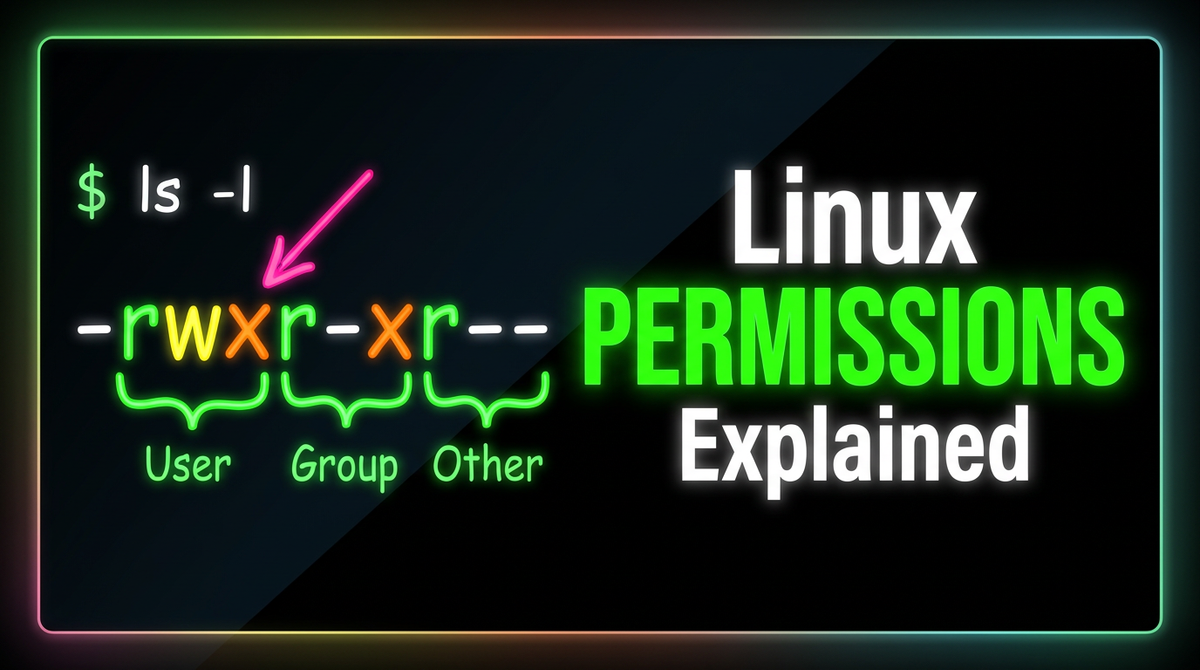
Have you ever tried to run a script in a Linux host and got permission denied error.
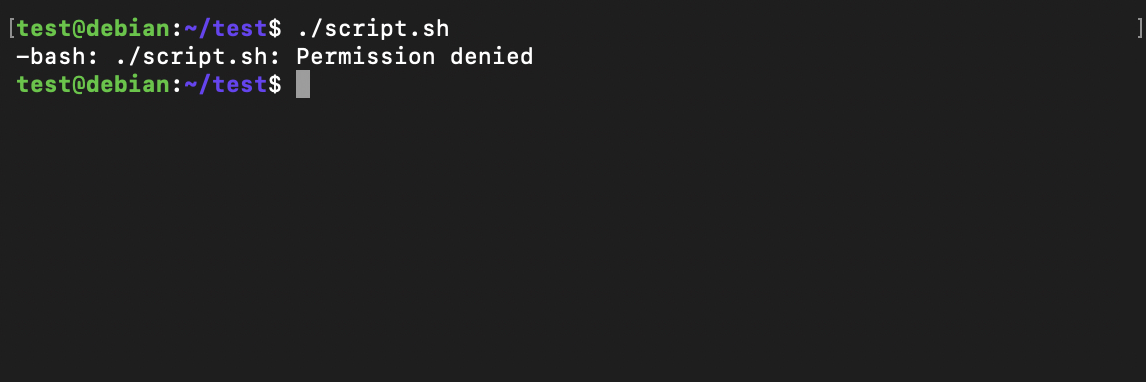
What you usually do in such scenarios? Well.. What I did as a Junior engineer was just google "How to fix permission denied error in linux script" and follow the instructions blindly because fixing the permission issue was not my main task. It was just a snag while working on my main task. But later I realized how important the small things that we ignore thinking it might not important.
Okay.. Today let's explore how linux file permissions actually works and fix file permission issues properly.
First let take a look on the output of ls -l script.sh command.

Here we can see lot of data. Out of all the data, there are 3 important fields that matters when it comes to file permission and access.
- -rw-r—r– this is the permission set that currently this file has.
- alice is the owner of the file
- developers is the group (set of users) that has access
Now let's see how to read the file permission.
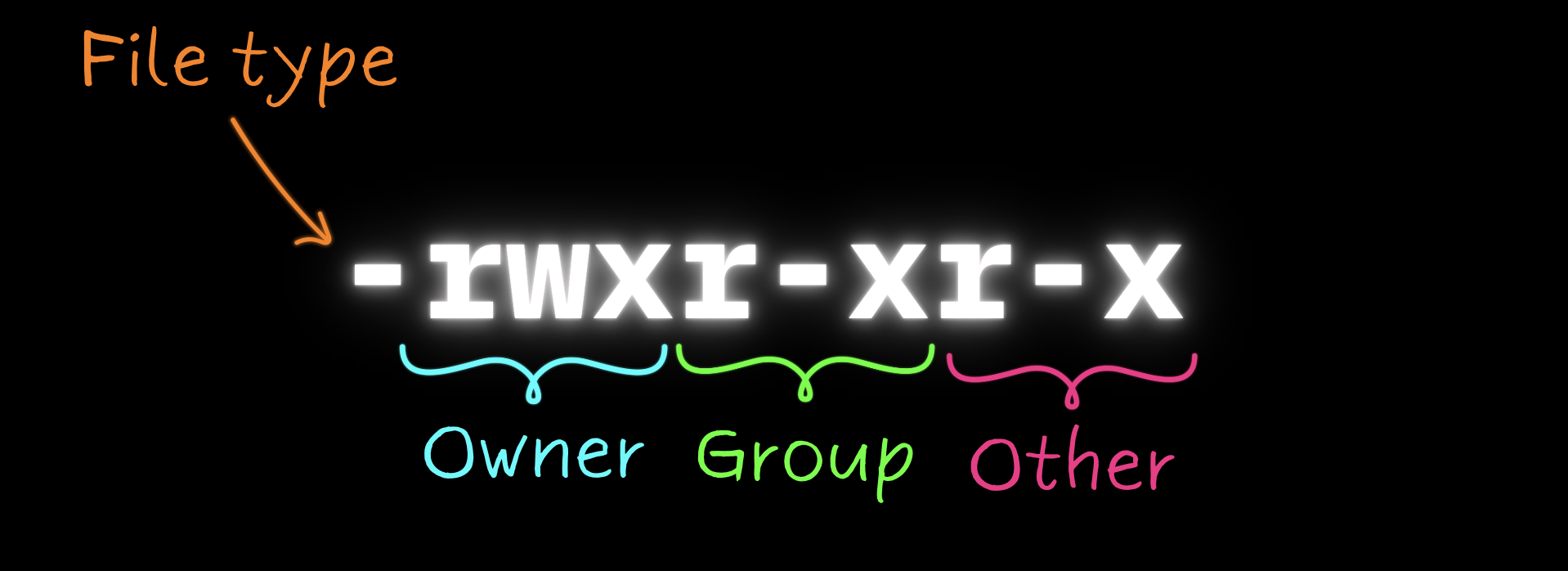
- first character is the file type. If it's a dash (-) that is a regular file and "d" mean a directory. There are other file types as well.
- Next, set of 9 characters are the permission for file, grouped by 3 characters.
- First group - Owner permission
- Second group - Group permission
- Third group - Other permission ( Other means user/groups which is not an owner or owner group)
Next let's see what each character defines in permission string.
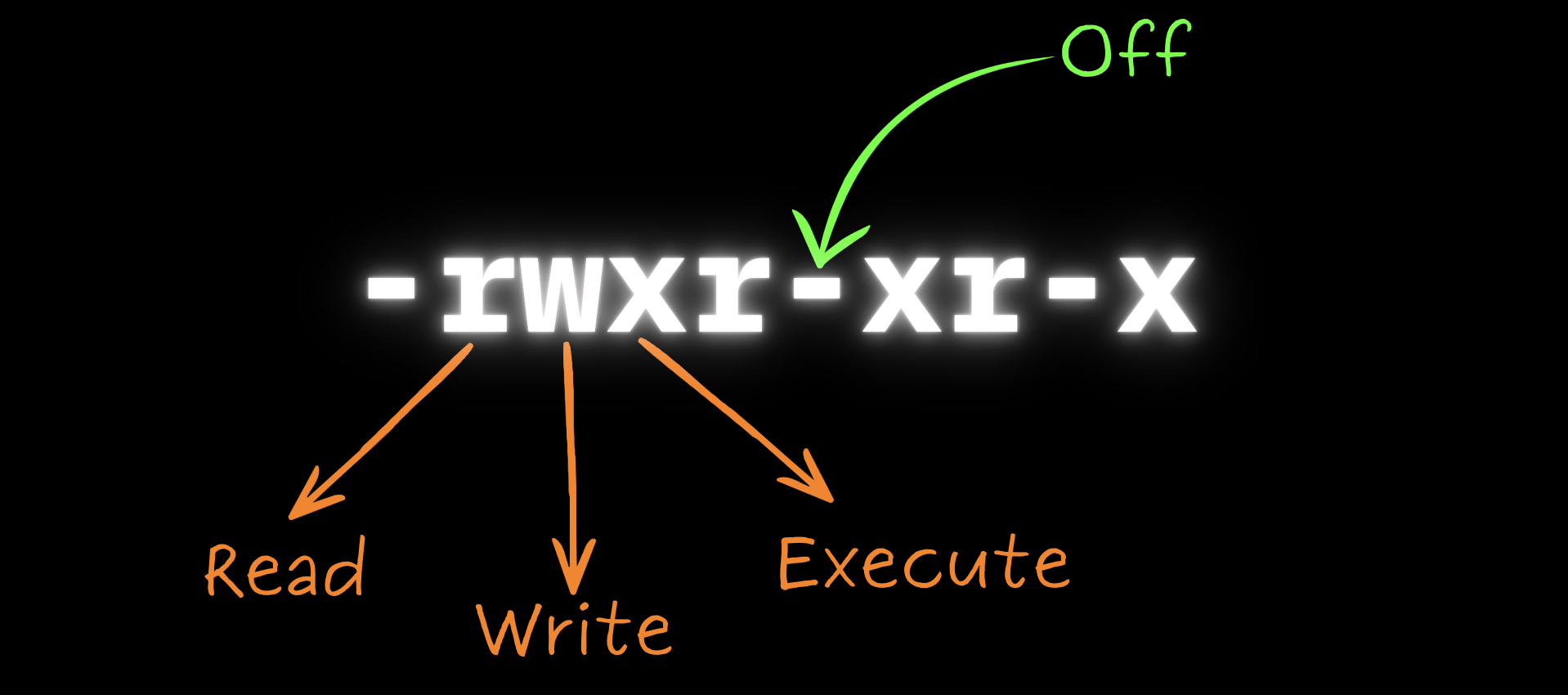
- r = 4 - Read permission
- For regular files Read permission means user is allowed to open and read the content of the file.
- For directories that means users are allows to see the files and sub directories in it.
- w = 2 - Write permission
- For regular files users can add, modify, and delete content in a file.
- For directories users can add, rename and delete files/sub directories in it.
- x = 1 - Execute permission
- For regular files users can run files as a program/script.
- For directories users can access the directory with like cd command.
You can assign permission in two ways.
- Symbolic - which use above rwx symbols
- Numeric - which use relevant numeric value for the permission.
Let's see practical examples for file permission.
chmod u+x script.shThis grant execute permission to the owner of script.sh
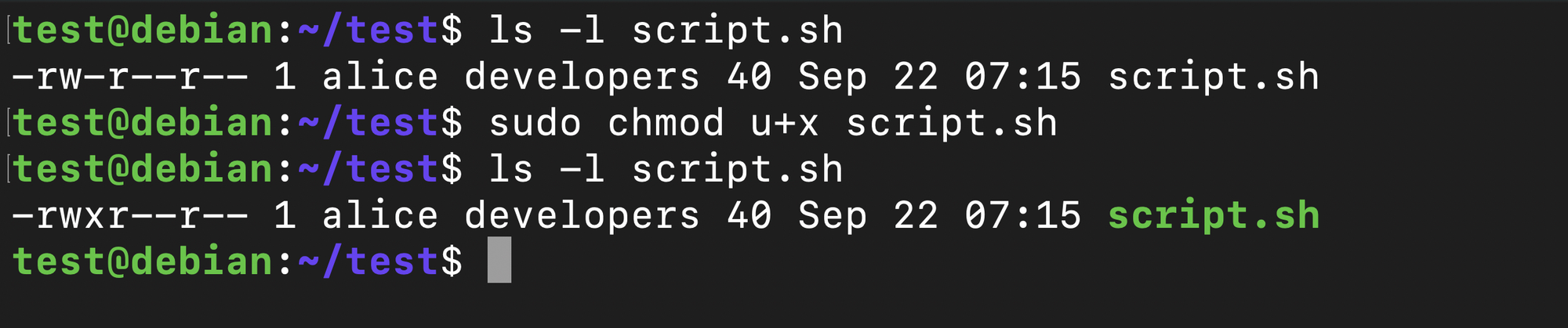
As you can see first script.sh file had Read and Write permission for the owner - alice, Read permission for Group - developers and Read permission for Others. Next after we granted execute permission to the owner of the file it has been changed to rwx.
We can do the same for groups and others as well.
- u = Owner
- g = Group
- o = Others
- a = All
Also we can add, remove and exactly assign permissions with +, - and = operators.
These permissions can be combined together if we need.
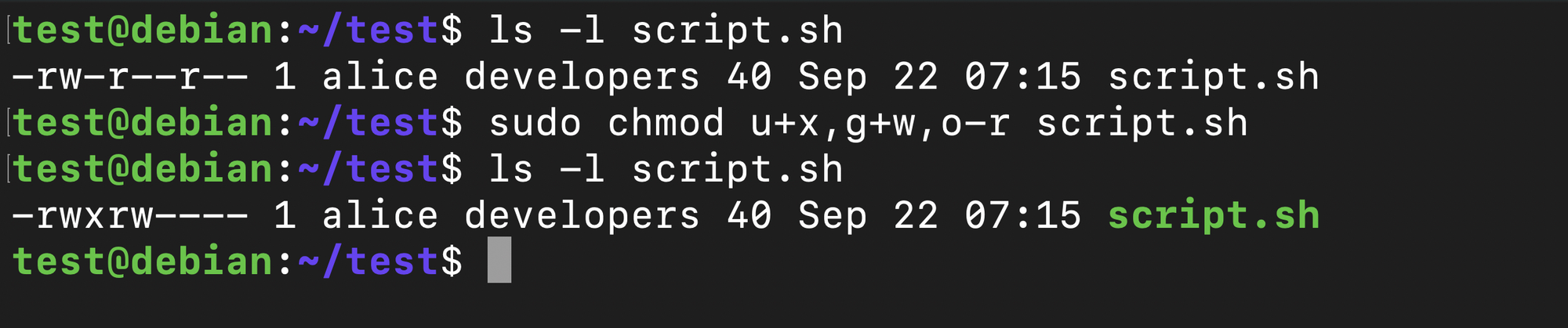
chmod u+x,g+w,o-r script.shWe added Execute permission to Owner, Write permission to Group and removed Read permission from Others.
Apart from symbolic method, we mostly use numeric method to grant permission for users. It looks difficult, but once you understand it it the easiest way to grant permission for files/directories.
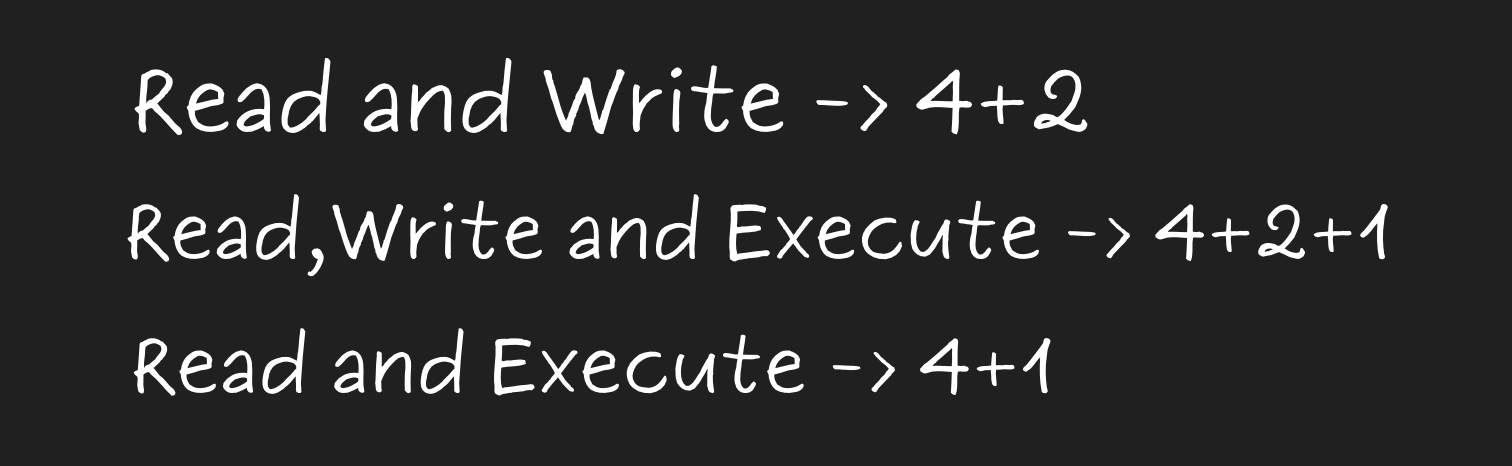
Let's see this in an example.
I want to grant Execute permission for all three while keeping current permission. So the current permission for file is;
- Owner: 6 = [4(r) + 2(w)]
- Group: 4 = [4(r)]
- Other: 4 = [4(r)]
Now to give the execute permission, let's calculate.
- Owner: r + w + x -> 4+2+1 = 7
- Group: r+x -> 4+1 = 5
- Execute: r+x -> 4+1 =5
So numeric value for required permission set is 755.
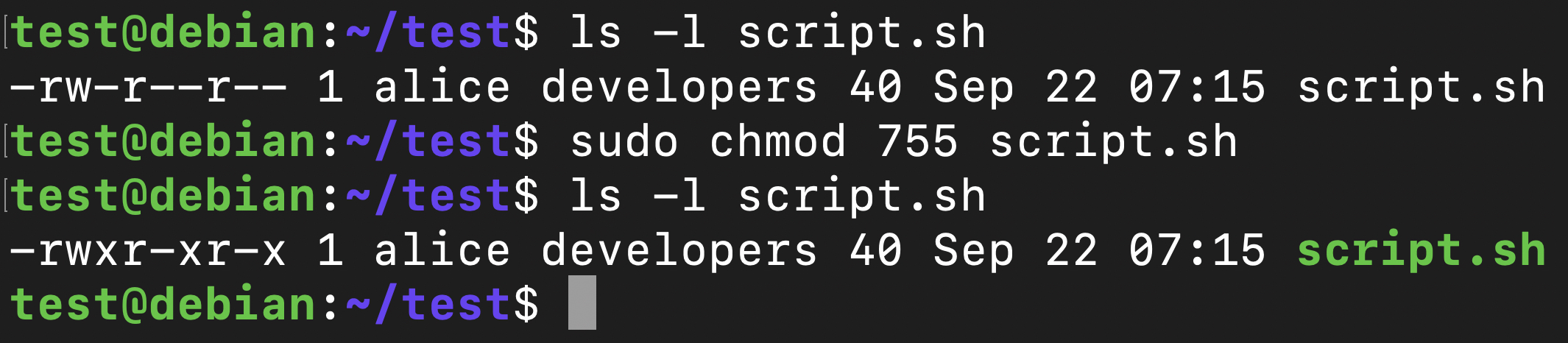
See. It's simple as that.
umask
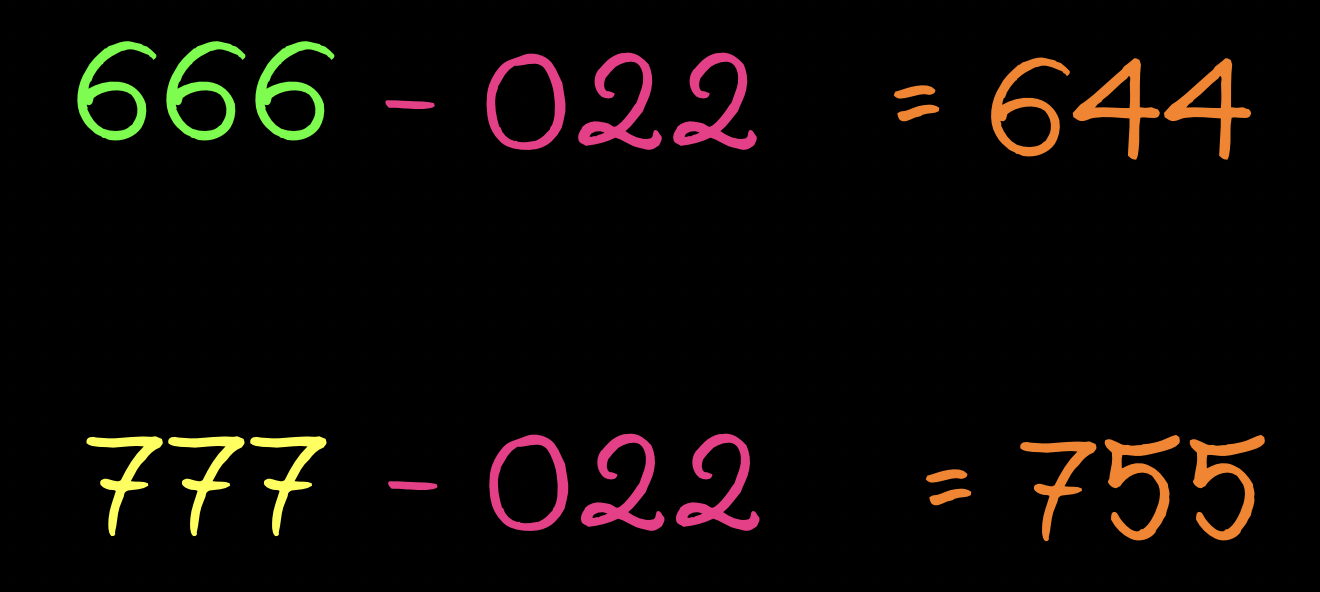
Now something important. Default permission for all the files in a linux kernel is 666 and directories 777. But when we create a file in our server it's default value is 644 and directory 755. Why is that? It's because of umask. It's a mask value which will restrict the default permission for newly created files and directories in Linux host. In most system it's 022.
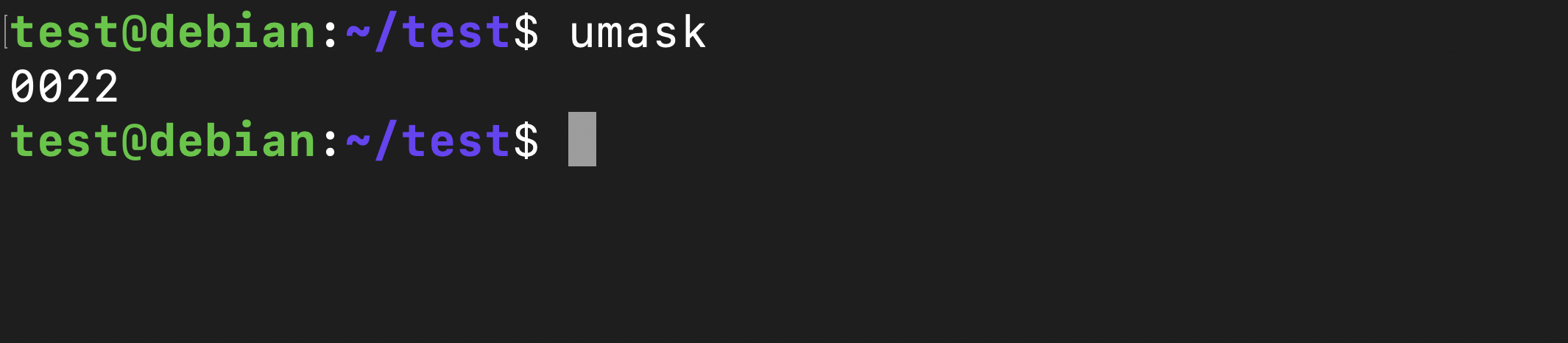
How this actually restrict the permission. Well.. it subtract the value from base default permission value of a file or directory. You can set your own umask value but please note that it will be only apply to newly created files, not the existing ones.
setuid, setgid, sticky bit
Apart from above there are another 3 special permissions in Linux systems.
- setuid - Allows programs to run as it’s owner. For an example, passwd runs as root so users can change their own password. It denotes with 4
- setgid - Makes new files inherit its group, not the creator’s group. Great for shared folders and on file level, it runs with group level privileges. Denotes with 2
- sticky bit - Only the creator of the file is allowed to delete it although other users have write access. Denotes with 1
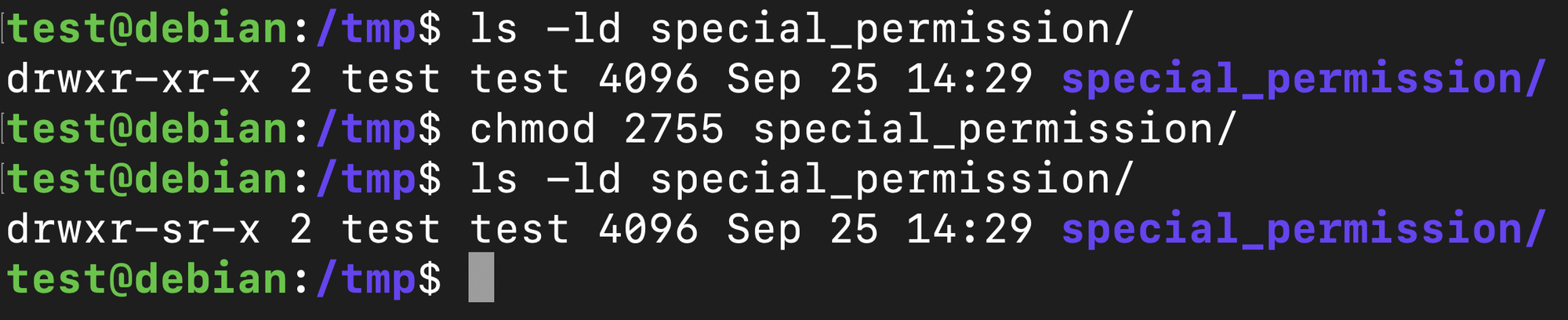
Now, the question is how to configure this? Well it's the same command. Below is an example command to setguid for a directory.

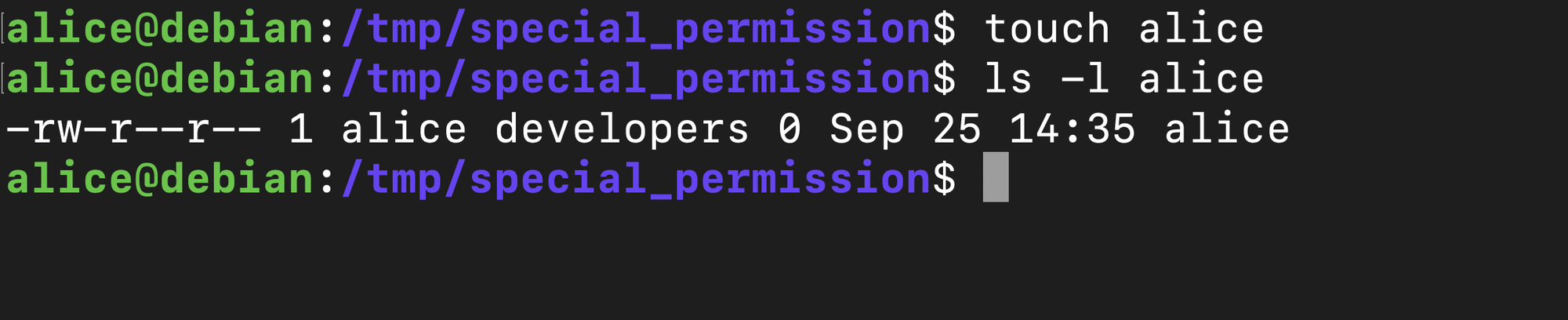
Here is the real output from terminal. As you can see, there is a character "s" is set in execute slot in Group permission set.
Okay try these by yourself, that the best way to learn.
Common mistakes and fixes
As I mentioned in the beginning, most of us do things blindly if it's just a fix for a small snag of a major task. But when it comes to the file permission, blindly granted permission set can be a disaster like security incidents, some user not intended to have write permission got write permission and deleted a directory accidentally etc. Who knows what can happens. So it's better to be extra precautious when granting permission. Here are some common mistakes.
- Granting unnecessary permission like 777 to a file or directory.
- Running everything as root, this will break access to other users who don't have sudo permission. Then you will have to fix permission manually.
- Update permission without checking the file ownership.
So as a fix, alway check for the file/directory ownership. Then the permission string. If the user can be added to the ownership group and it has necessary permissions, just add the user to the group without granting permission to others. It will apply to all the users which not even suppose to have permission. Always grant the least permission for the file which get the job done.
That's it for this post. Hope you learn something from this. And also you can watch the tutorial in our Youtube channel as well.
See you in the next tutorial!
If you are new to Linux and need to get started, you can read the Linux 101 post below.